
Nimo keeps signing in quick: a touch of your fingerprint or face with a passkey, one tap with Google, or your mobile number and a password. You can set up more than one, and Nimo suggests you do.
The ways in
| Way | How it works |
|---|---|
| Passkey | Your phone or computer unlocks Nimo with your fingerprint, face or screen lock. Nothing to type or remember. |
| Tap Continue with Google and pick your account. | |
| Mobile and password | Type your Mobile number and Password, then tap Sign in. |
Sign in
- Open gonimo.in/login.
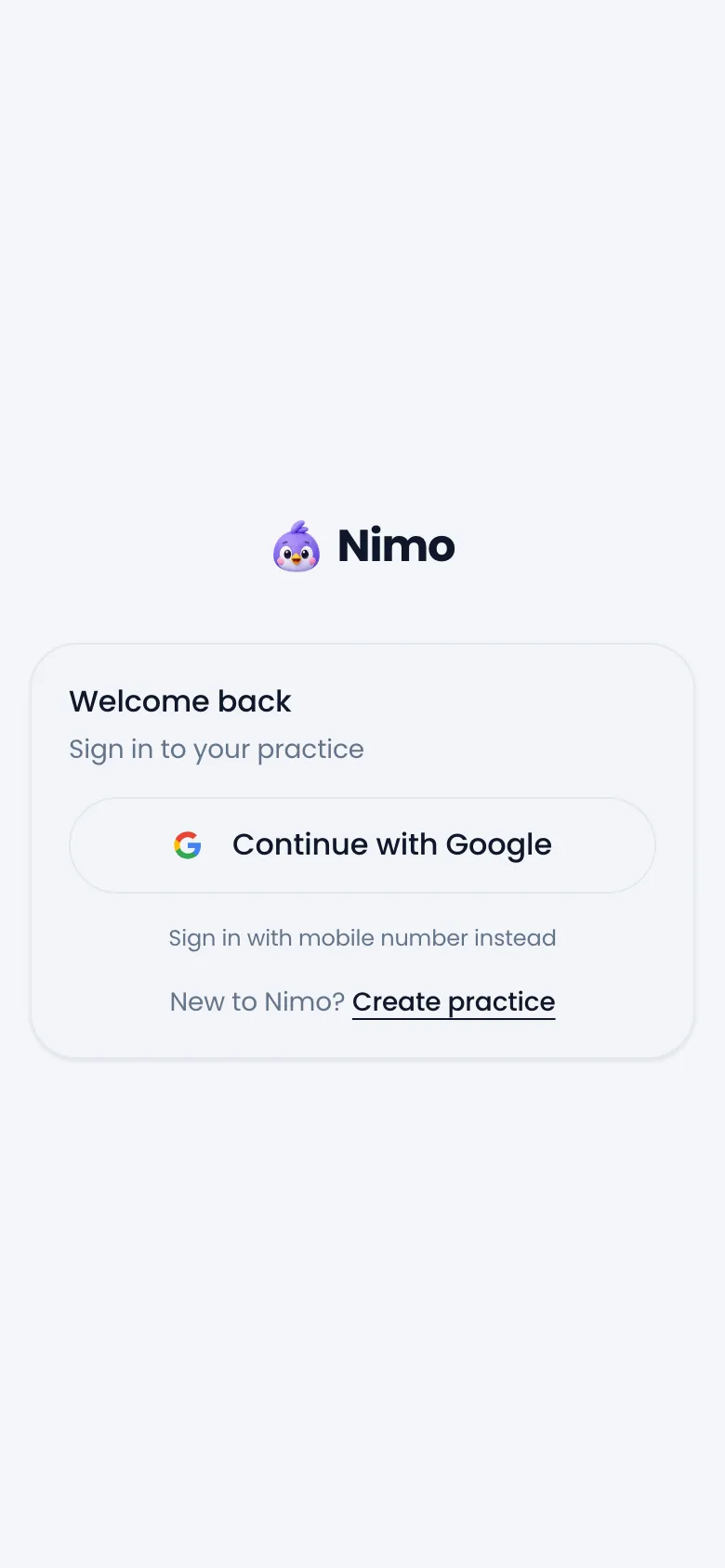
- Tap Continue with Google. To use your mobile instead, tap Sign in with mobile number instead if you see it.
- Type your Mobile number. If this device has your passkey, your phone offers it right above the keyboard. Otherwise type your Password and tap Sign in.
You can also find your passkey under More ways to sign in → Sign in with passkey.
Manage how you sign in
Go to Me → Sign-in & security. The How you sign in card lists everything that gets you into Nimo.
- Passkeys: tap Add a passkey to add this phone or computer. Add one on each device you use.
- Password: tap Set to add one, or Change to pick a new one. It needs at least 6 characters.
- Linked accounts: next to Google, tap Add to sign in with Google too.
To remove a passkey or unlink Google, tap the bin icon next to it.
Why Nimo keeps one way in
Nimo won't let you remove your last way in. If you have only one, its bin icon is greyed out, with the note "Add another way in first, so you don't get locked out". Add a second method, then remove the first.
Forgot your password?
Nimo sends a code to your recovery email. Add one in Profile before you need it.
- On the sign-in page, tap Forgot password?
- Type your Mobile number and tap Send code.
- Check your email for a 6-digit code. It works for 1 hour.
- Type it in 6-digit code and tap Verify code.
- Type your New password twice and tap Update password.
No email? Check spam and promotions. If you never added a recovery email, sign in with Google or a passkey instead, then set a new password from Sign-in & security.
Troubleshooting
"This account uses Google sign-in." You typed the mobile of an account that signs in with Google. Tap the Continue with button that shows your email.
"This Google email is already on a phone account." Sign in with your mobile instead. Then go to Sign-in & security → Linked accounts and tap Add next to Google, so Google works next time.
The passkey doesn't appear. Links opened inside Instagram or Facebook can't use passkeys. Tap Copy link and open it in Safari or Chrome.
"Incorrect mobile number or password." Check the country code, or tap Forgot password?
A teammate set up your login. Sign in with your mobile number and the password they sent you, not with Google. Then add a passkey.